The posting page
All your posts in one place: as a list, as a board by status, or in time in the calendar. Here is what each part of the page does.
Views
- Find, filter and group many posts
- Finish posts from draft to ready
- Decide what goes out on which day
- See how far your plan reaches
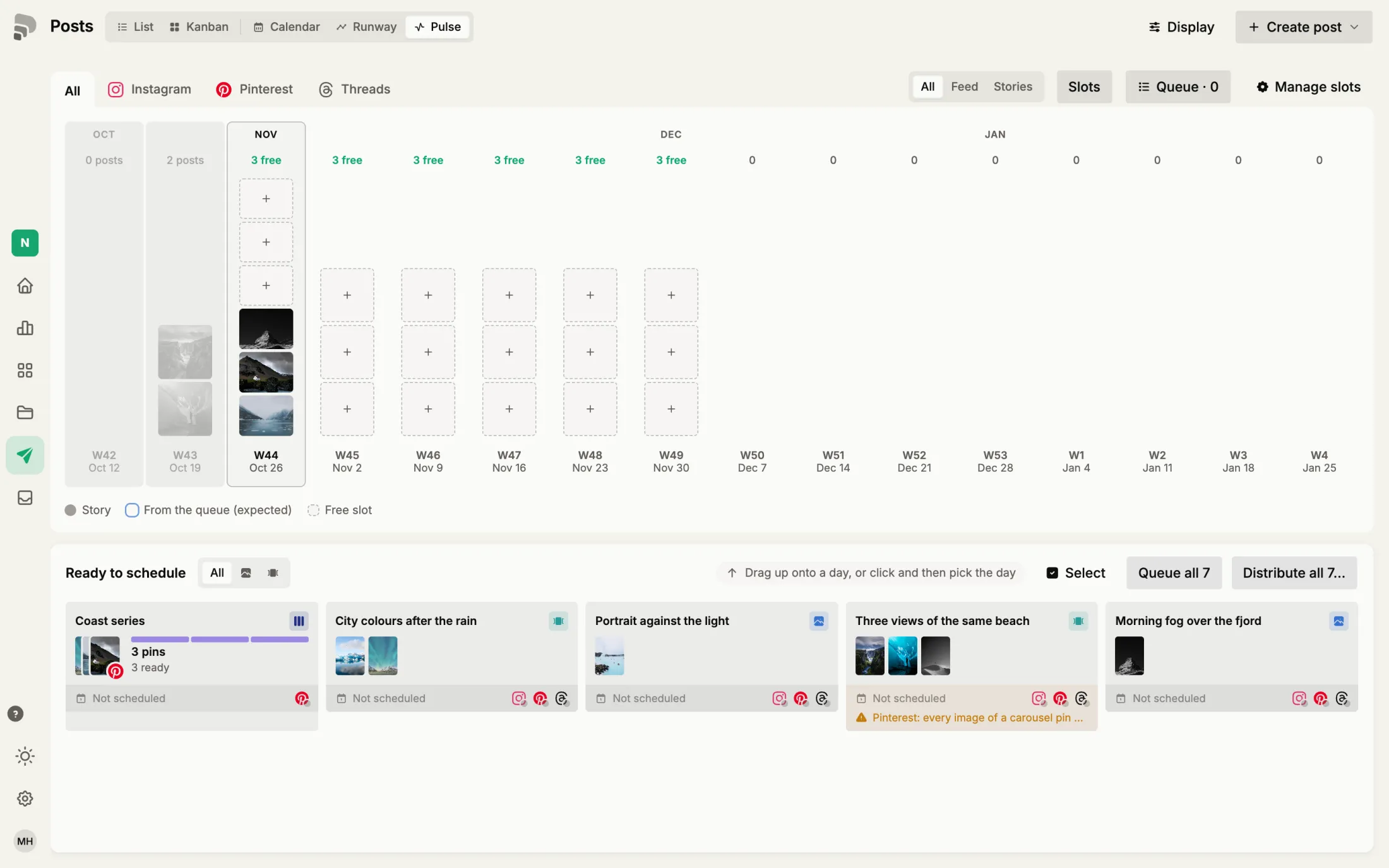
- Keep an even posting rhythm
When you want to see many posts at once or find a specific one. Filters and groups help you tidy up, for example all failed posts or everything for Pinterest.
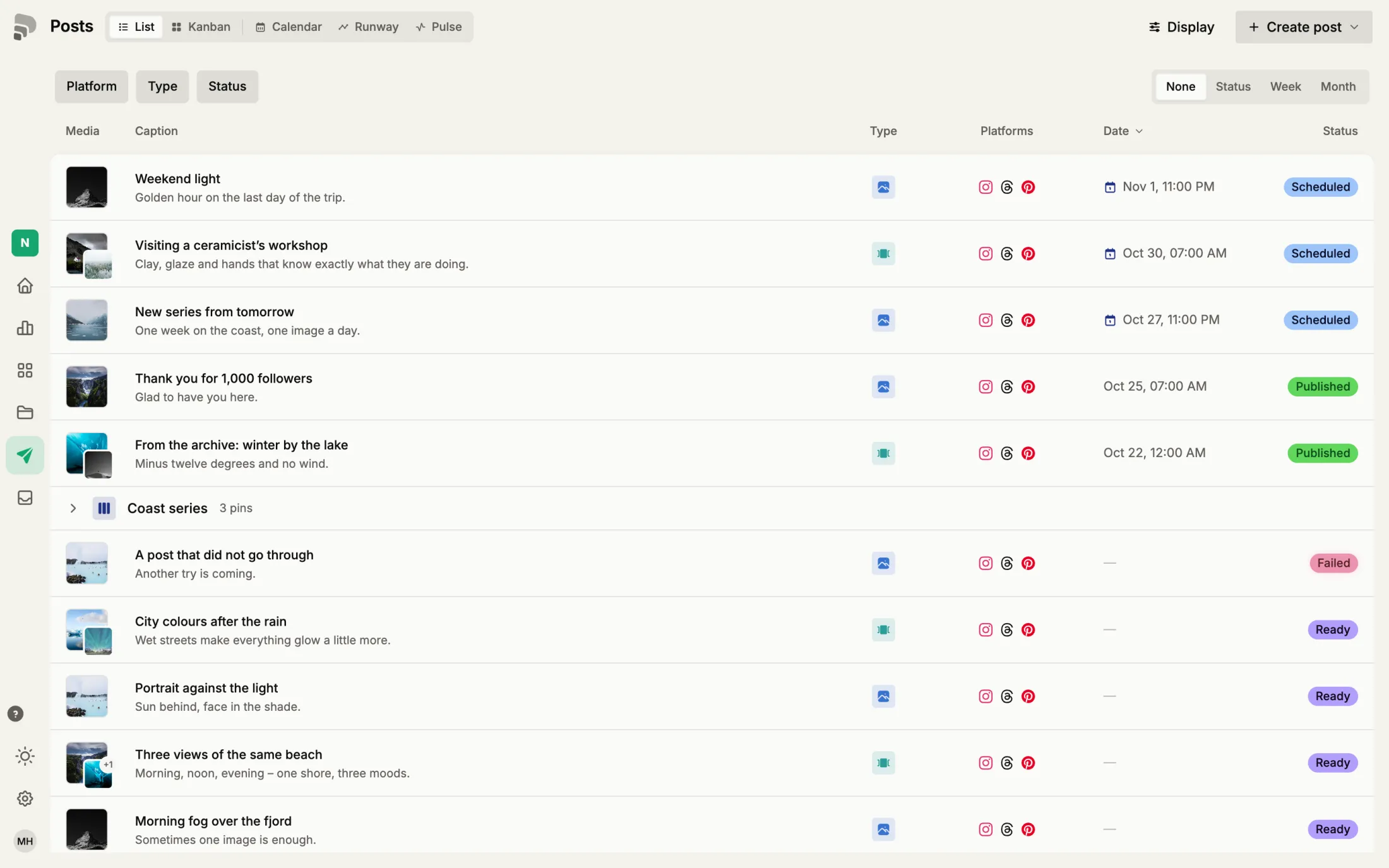
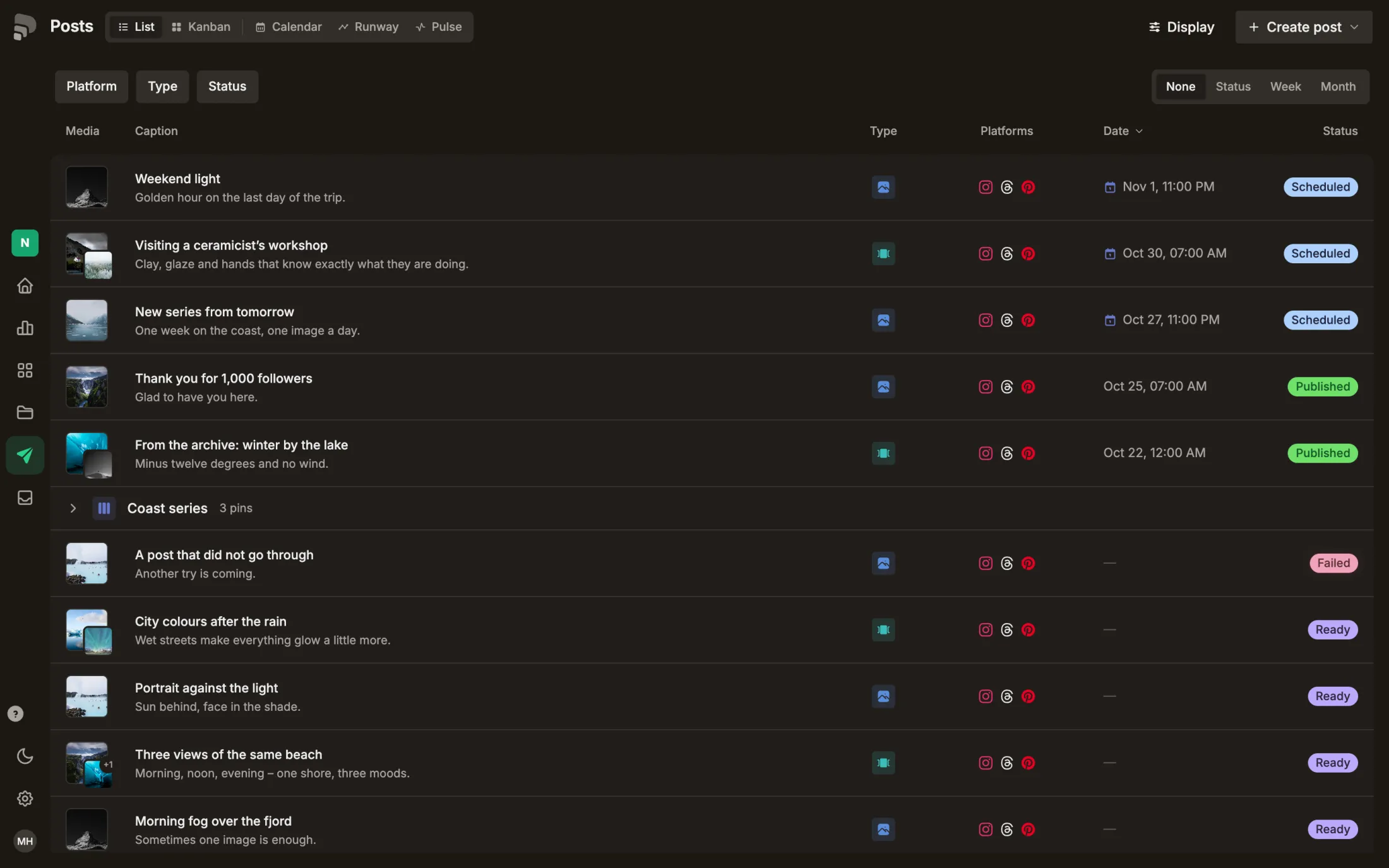
- 1
Switch views
Choose how you see your posts: list, board, calendar, runway or pulse. The page remembers your last choice.
- 2
Display
Show archived posts or group a series into one entry.
ArchivedArchivedPut away, but not deleted. Archived posts are hidden unless you show them under “Display”.In the glossary →SeriesSeriesSeveral posts that belong together, such as a set of pins. On the board they lie on one stack.In the glossary →
- 3
Create a post
Start a new post. The menu offers the kinds of posts your channels support.
ChannelChannelA connected account on a platform, such as your Instagram profile. A post can go out on several channels.In the glossary →
- 4
Filters
Narrow the list by platform, post type or status, and group it, for example by date.
- 5
Your posts
One row per post with media, caption, platforms, date and status. Click a row to open the post.
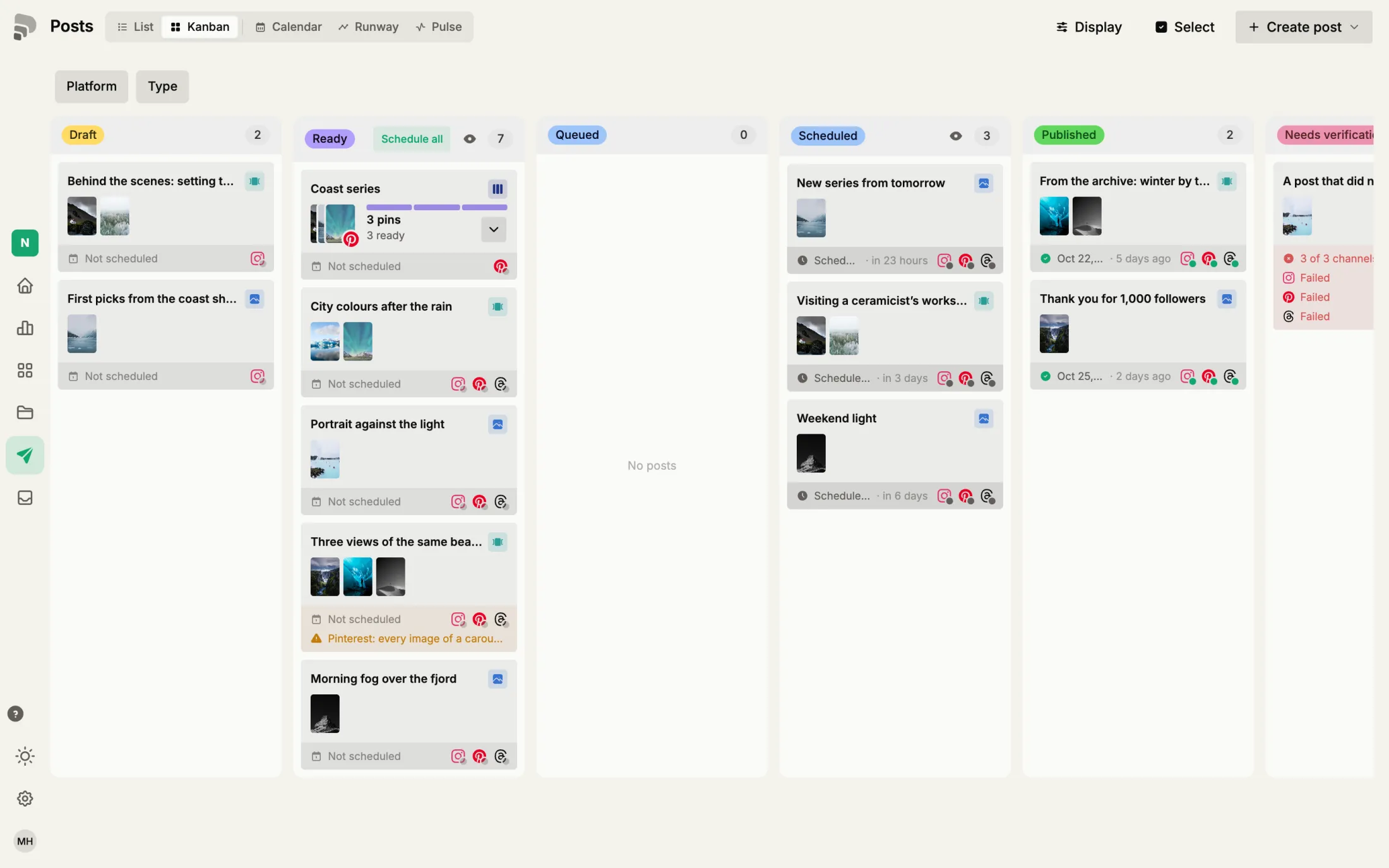
When you are working on posts and finishing them step by step. Each column is a stage; whatever sits in “Ready” can be scheduled.
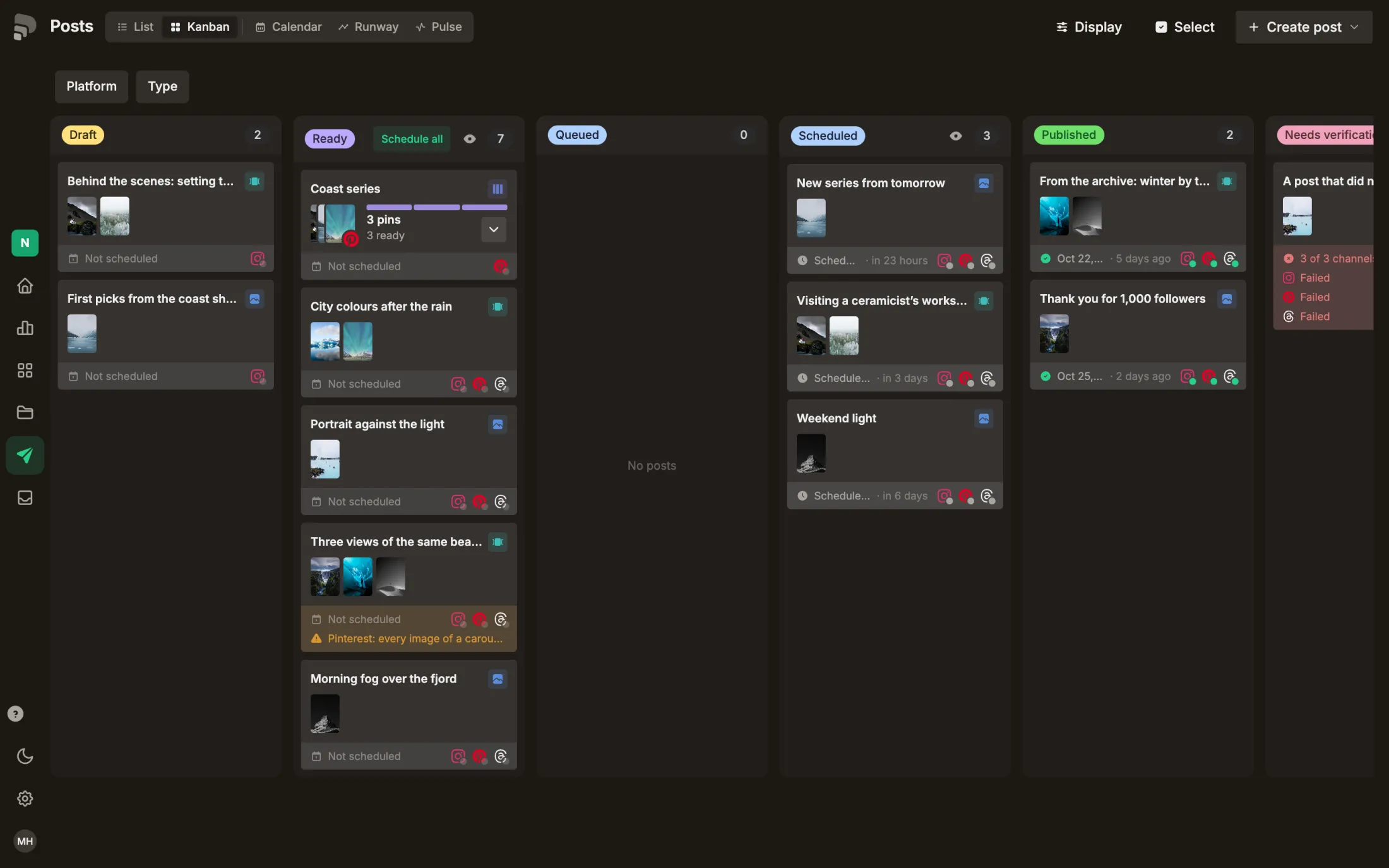
- 1
Drafts
Each column is a status. Drafts are posts you are still working on.
DraftDraftA post you are still working on. Drafts never go out on their own.In the glossary →
- 2
Ready
Complete posts that can be scheduled. “Schedule all” at the top of the column plans them in one go.
ReadyReadyText, media and channels are complete. A ready post can be scheduled.In the glossary →
- 3
Scheduled
These posts have a date and go out by themselves.
ScheduledScheduledThe post has a date and time and goes out by itself at that moment.In the glossary →
- 4
A post card
A card shows the first image, the caption and the channels. Drag it into another column to change its status, click it to open it.
- 5
A series
Pins of a Pinterest series lie on one stack. It moves through the columns as a whole; click it to see the single pins.
SeriesSeriesSeveral posts that belong together, such as a set of pins. On the board they lie on one stack.In the glossary →
- 6
Select
Switches selection on. Then a click on a card selects it instead of opening it.
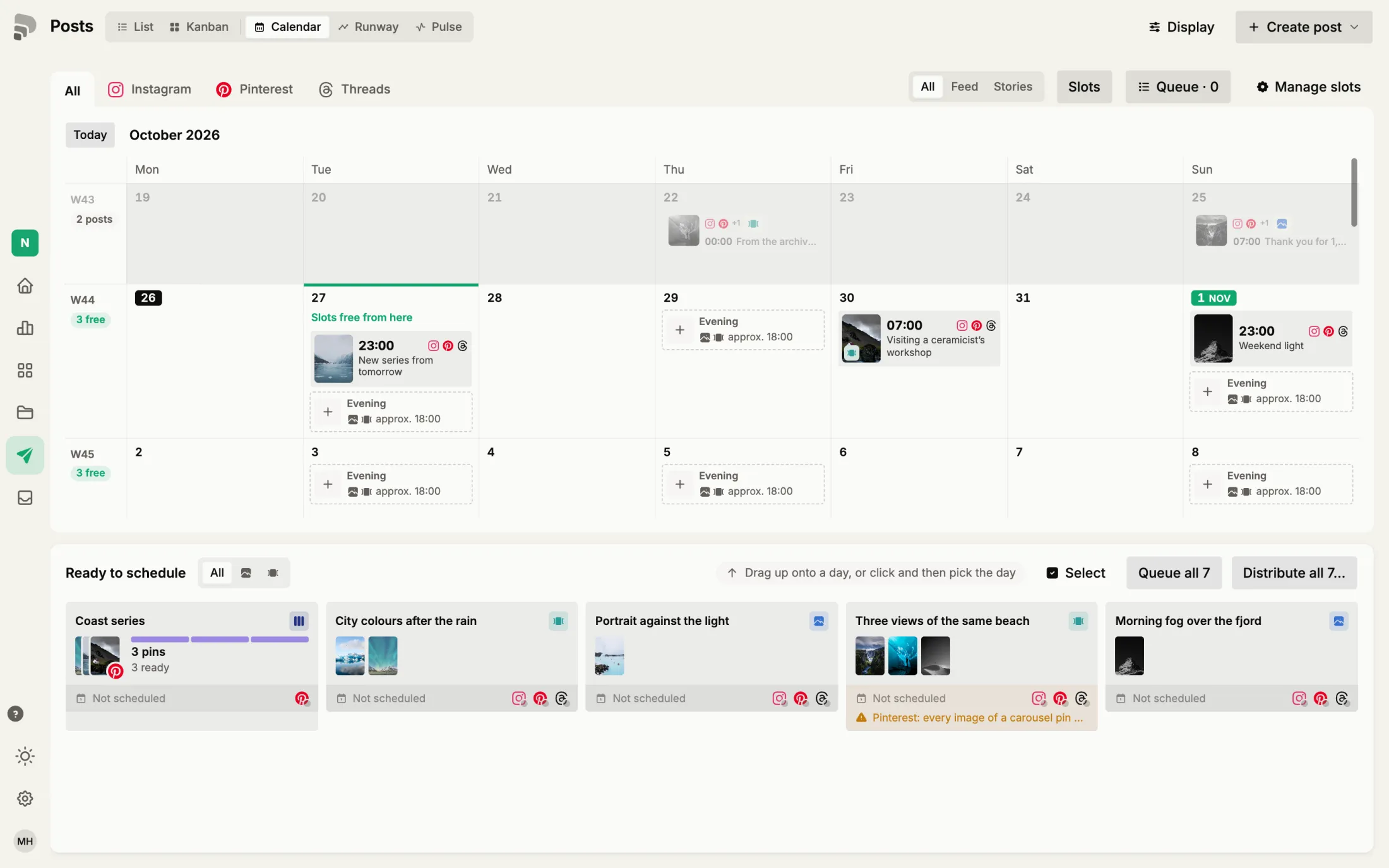
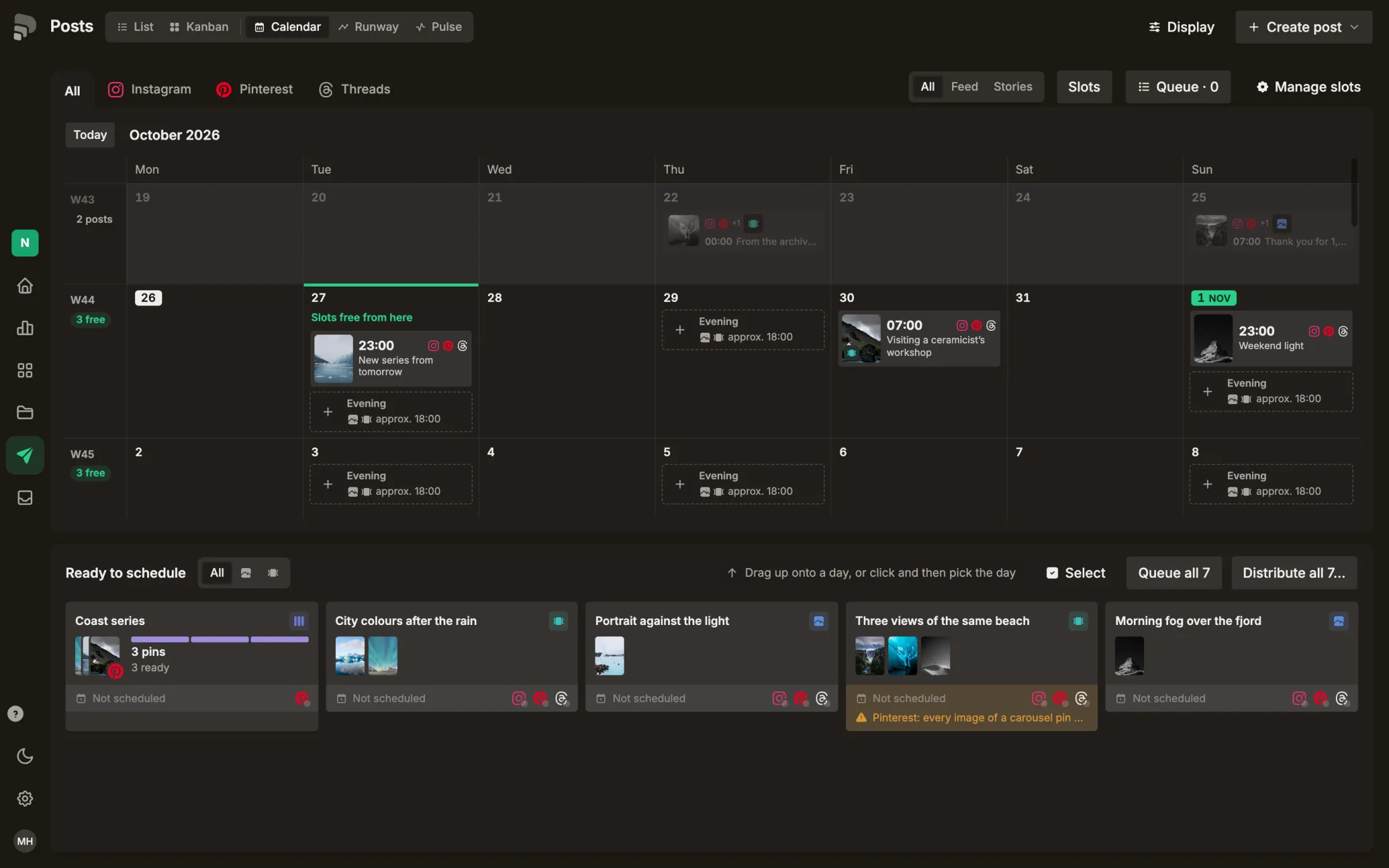
When you decide what goes out on which day. Drag ready posts onto a day, or distribute several at once.
- 1
Your plan in time
Scheduled and published posts by day. Runway and pulse show the same plan as a strip and as a weekly overview.
ScheduledScheduledThe post has a date and time and goes out by itself at that moment.In the glossary →PublishedPublishedThe post is live on every channel it was meant for.In the glossary →
- 2
Ready posts
Posts that are ready but have no date yet. Drag one onto a day to schedule it.
ReadyReadyText, media and channels are complete. A ready post can be scheduled.In the glossary →
- 3
Distribute
Spreads several ready posts over the coming days by a rule you choose.
Planning modePlanning modeSpreads several ready posts over days and times by a rule. Nothing is scheduled until you confirm.In the glossary →
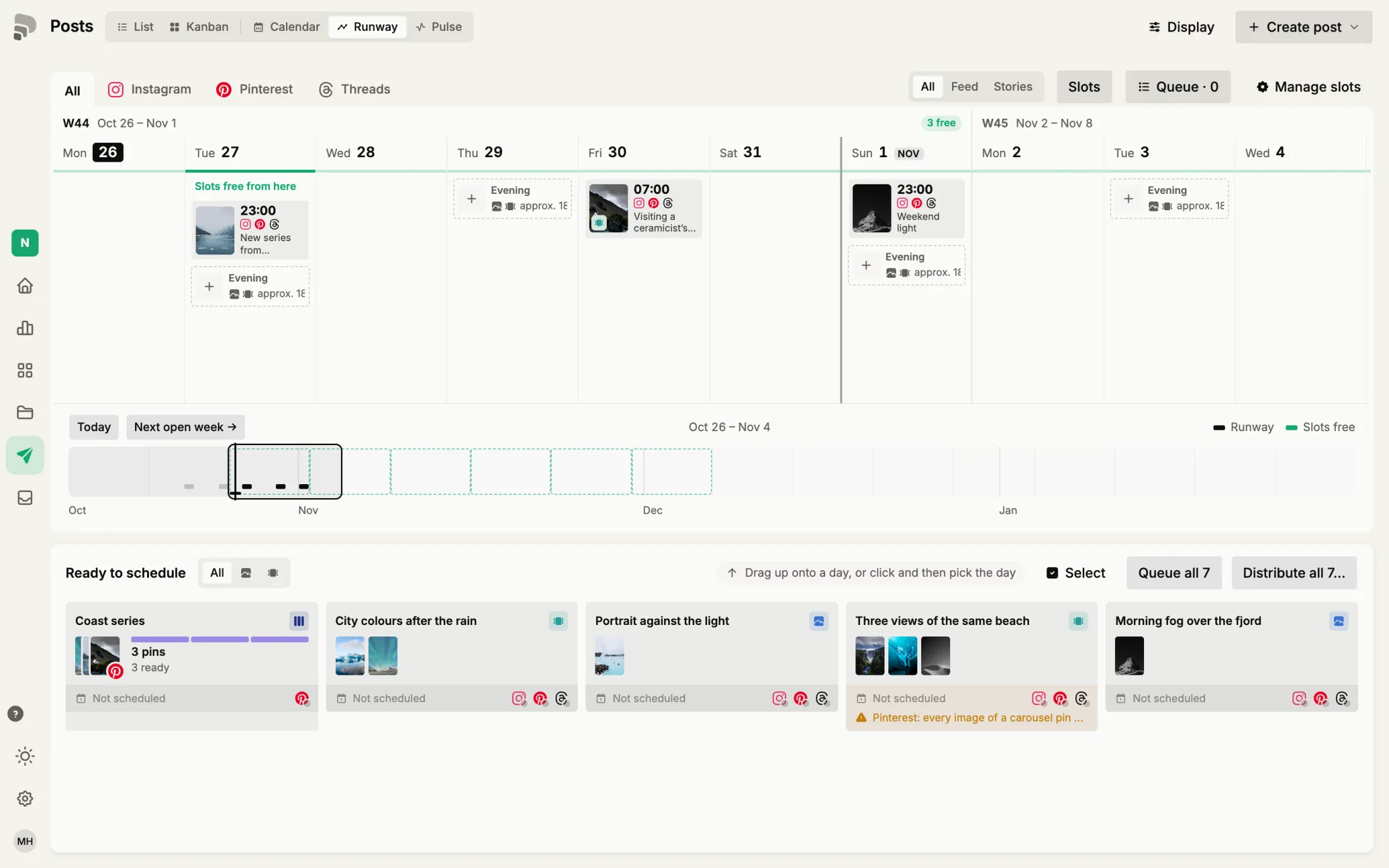
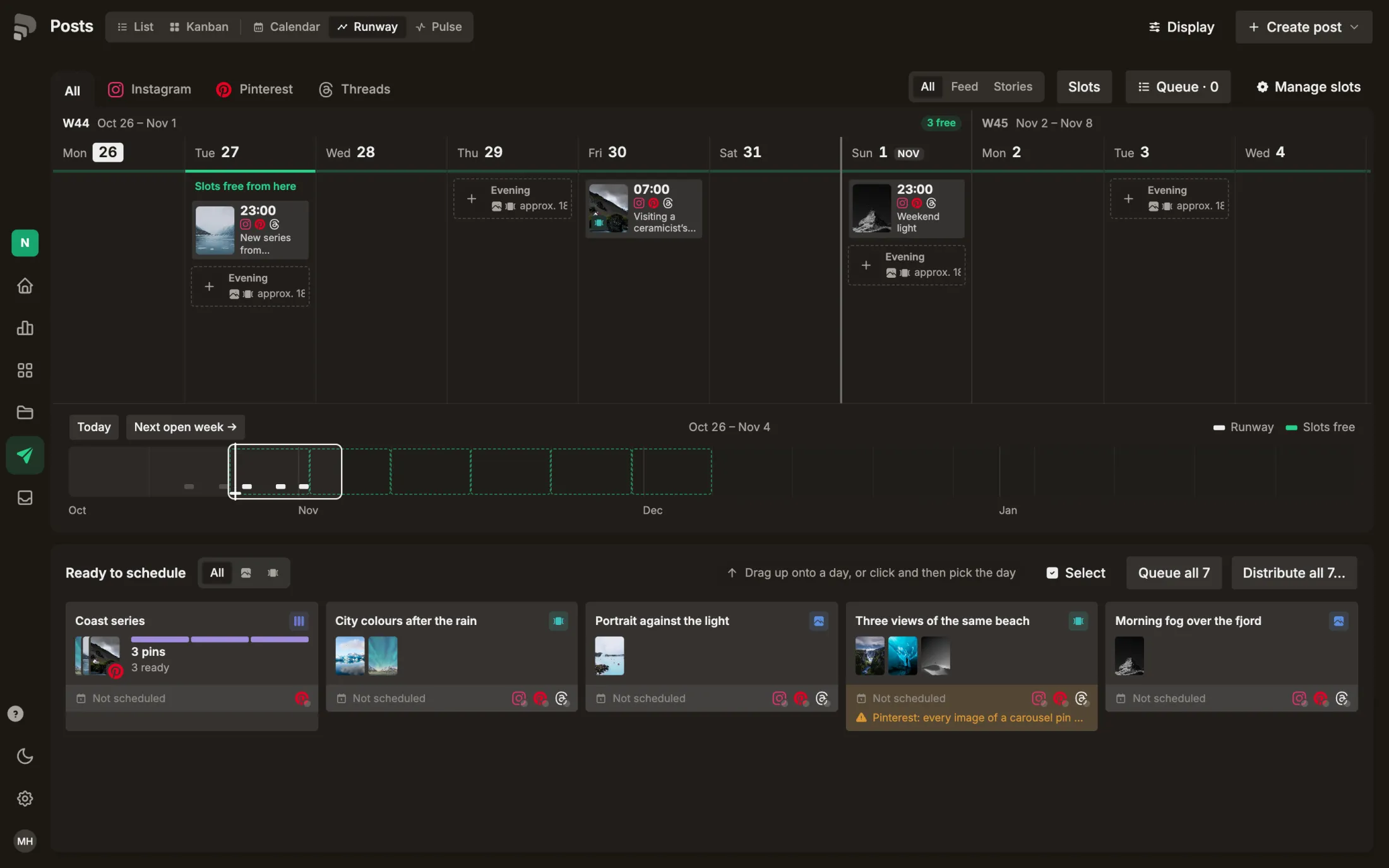
When you want to know how long your plan will last. Gaps in the strip show where nothing is planned soon.
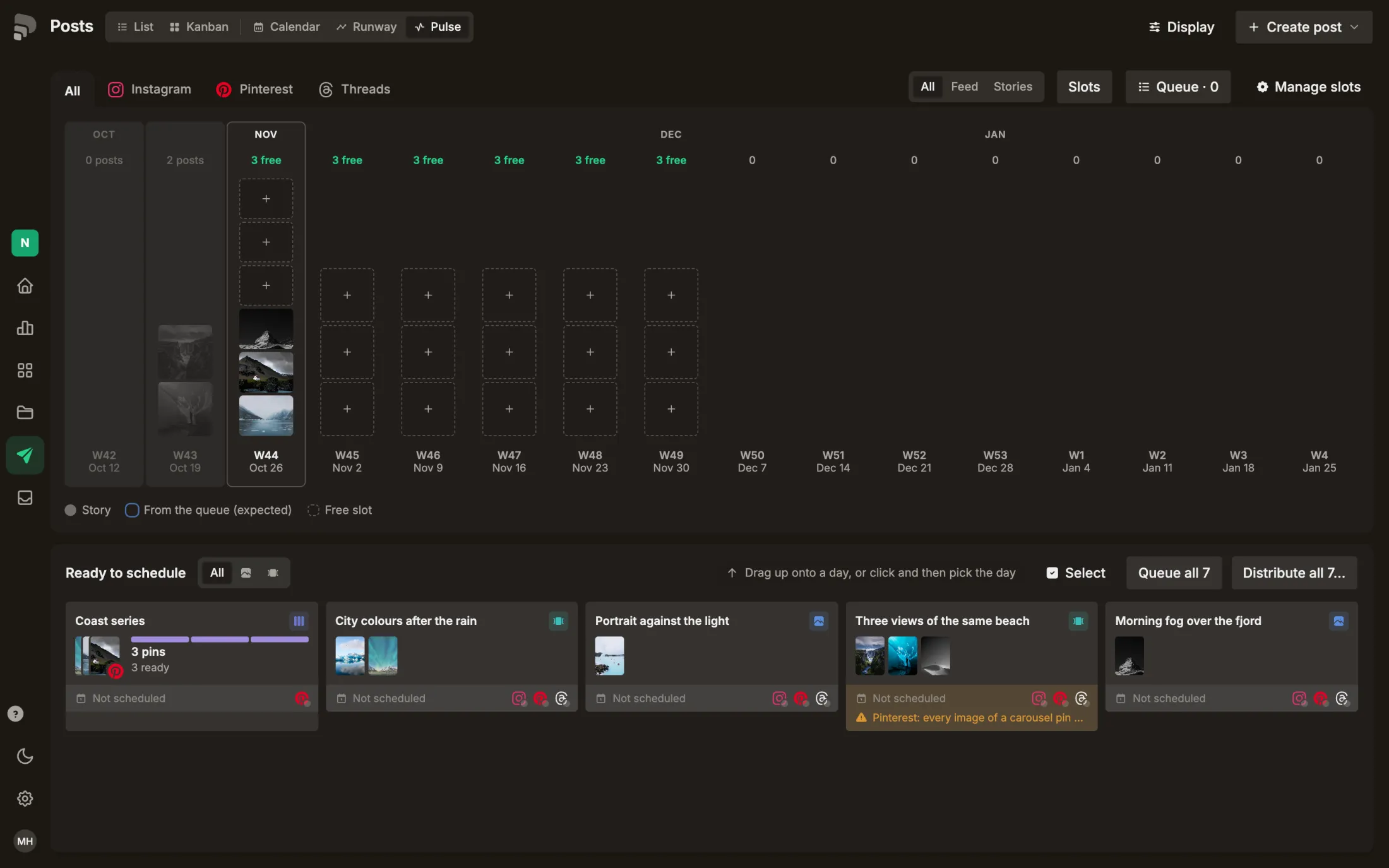
When you want to check whether you post evenly. Weeks with too many or too few posts stand out at once.
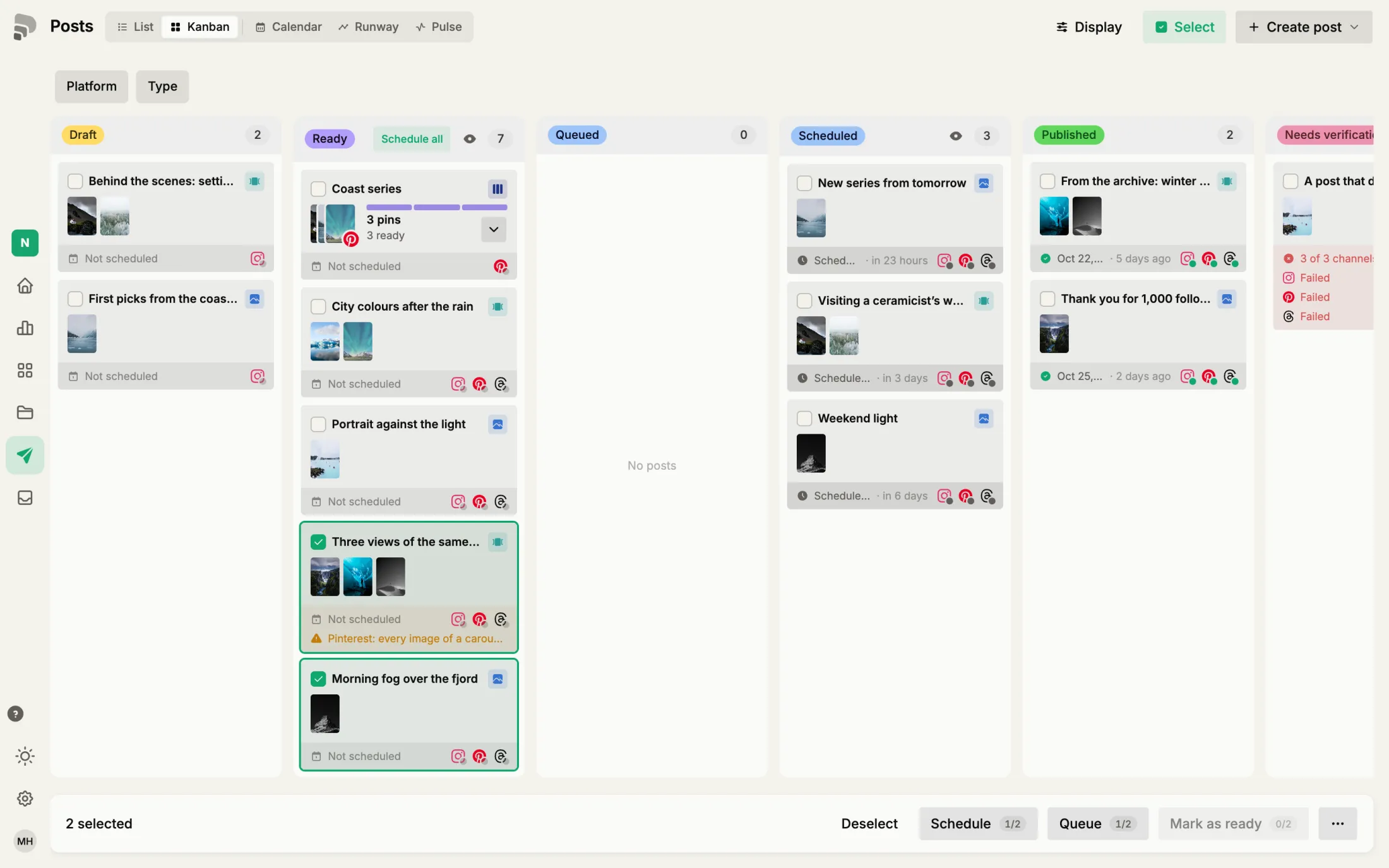
Several posts at once
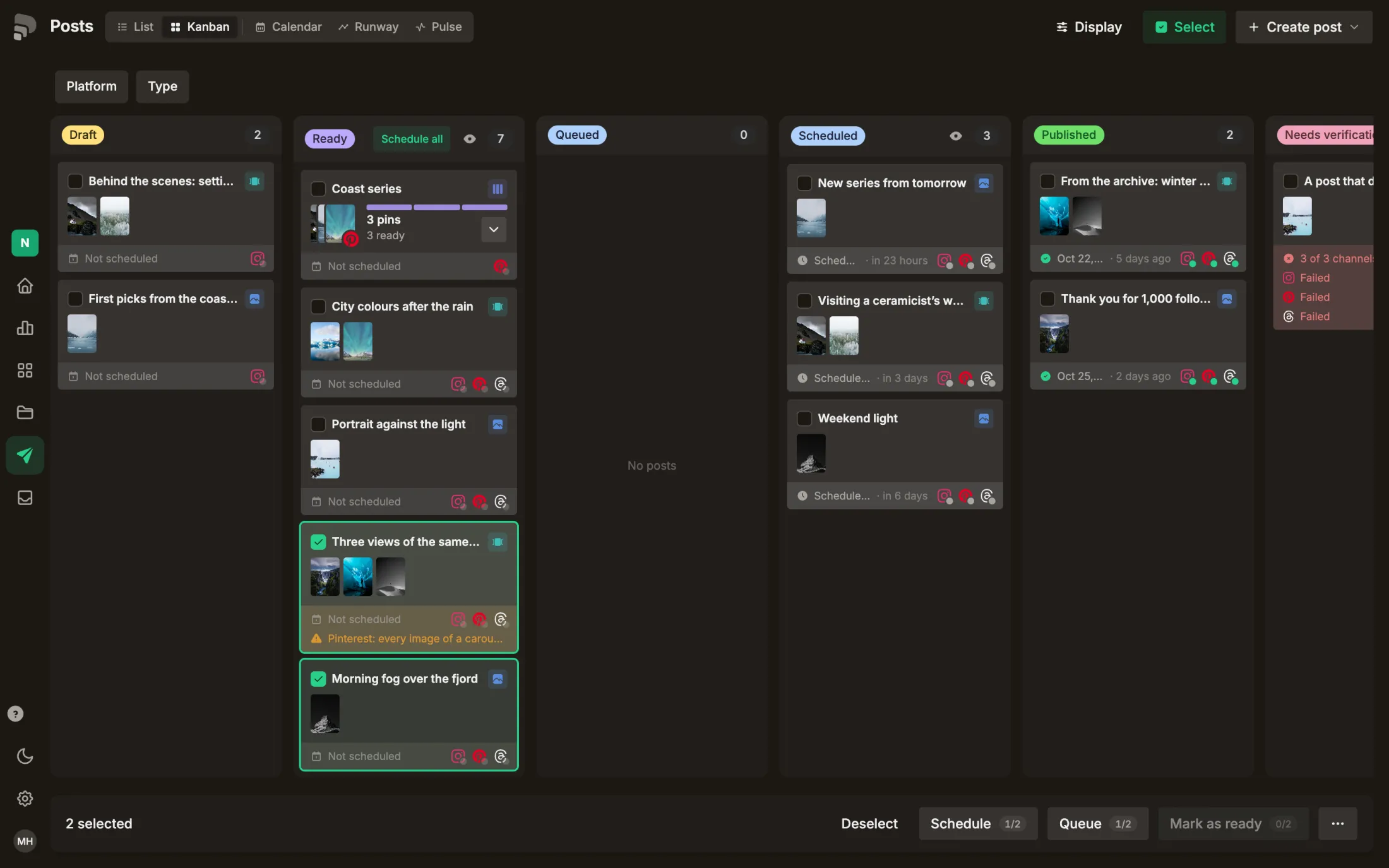
How to get there: Click “Select” at the top. Select two posts in “Ready”.
- 1
Selection bar
Everything you can do with the selected posts at once: schedule, move, archive and more.
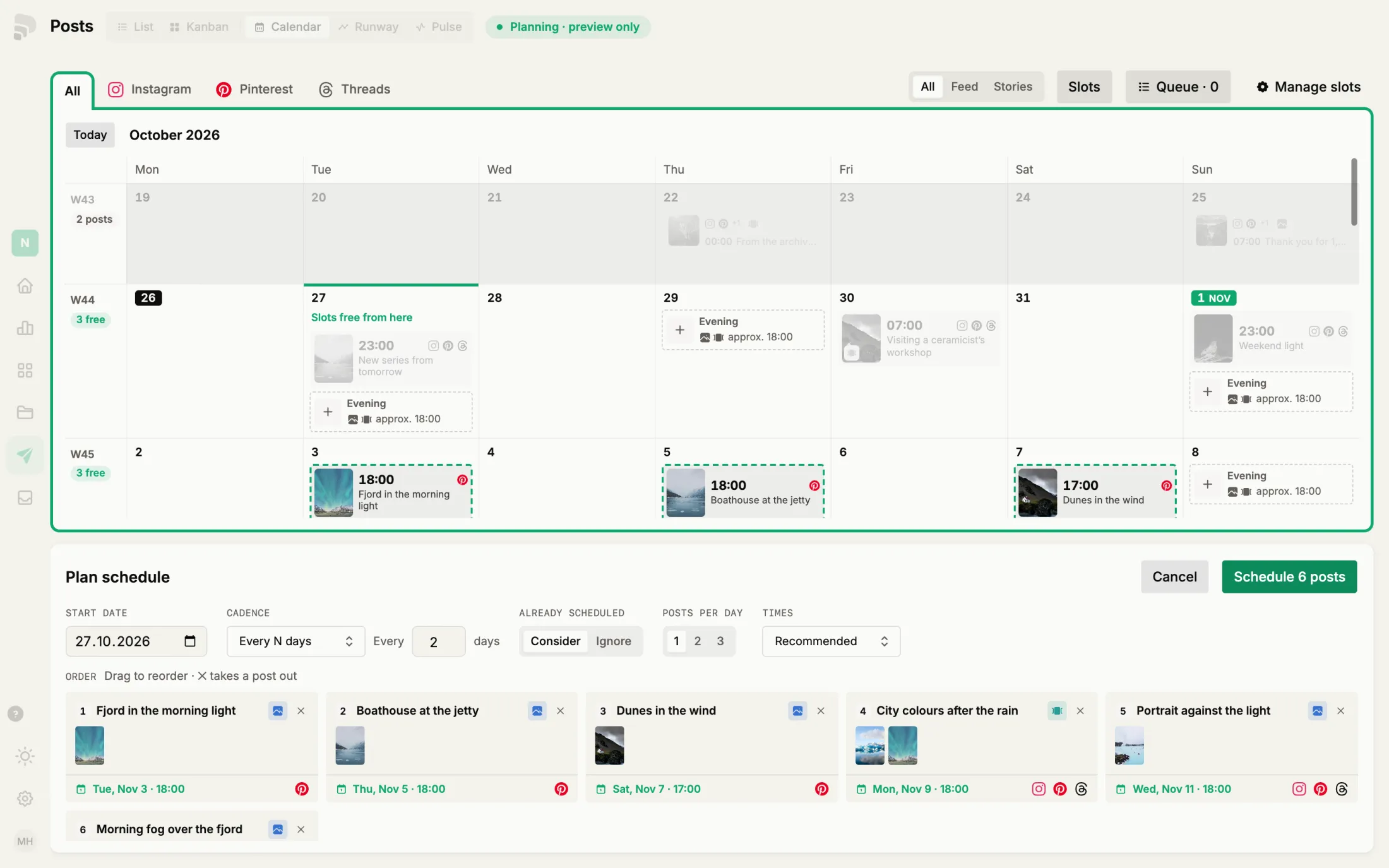
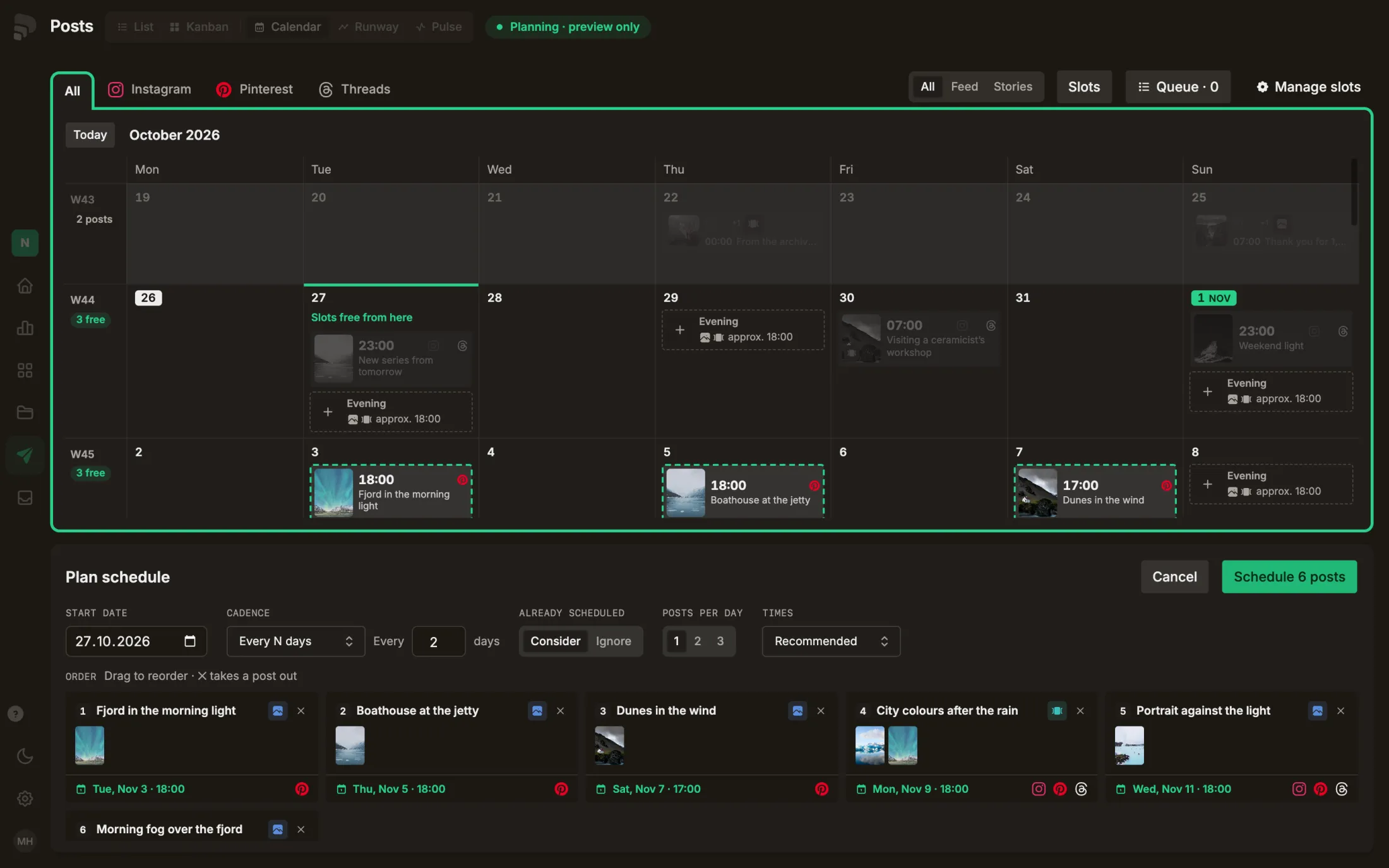
Planning mode
How to get there: Click “Distribute” below the calendar.
- 1
The rule
How many posts per day, on which days and at what time. The calendar above shows the result right away. Nothing is scheduled until you confirm.
Planning modePlanning modeSpreads several ready posts over days and times by a rule. Nothing is scheduled until you confirm.In the glossary →
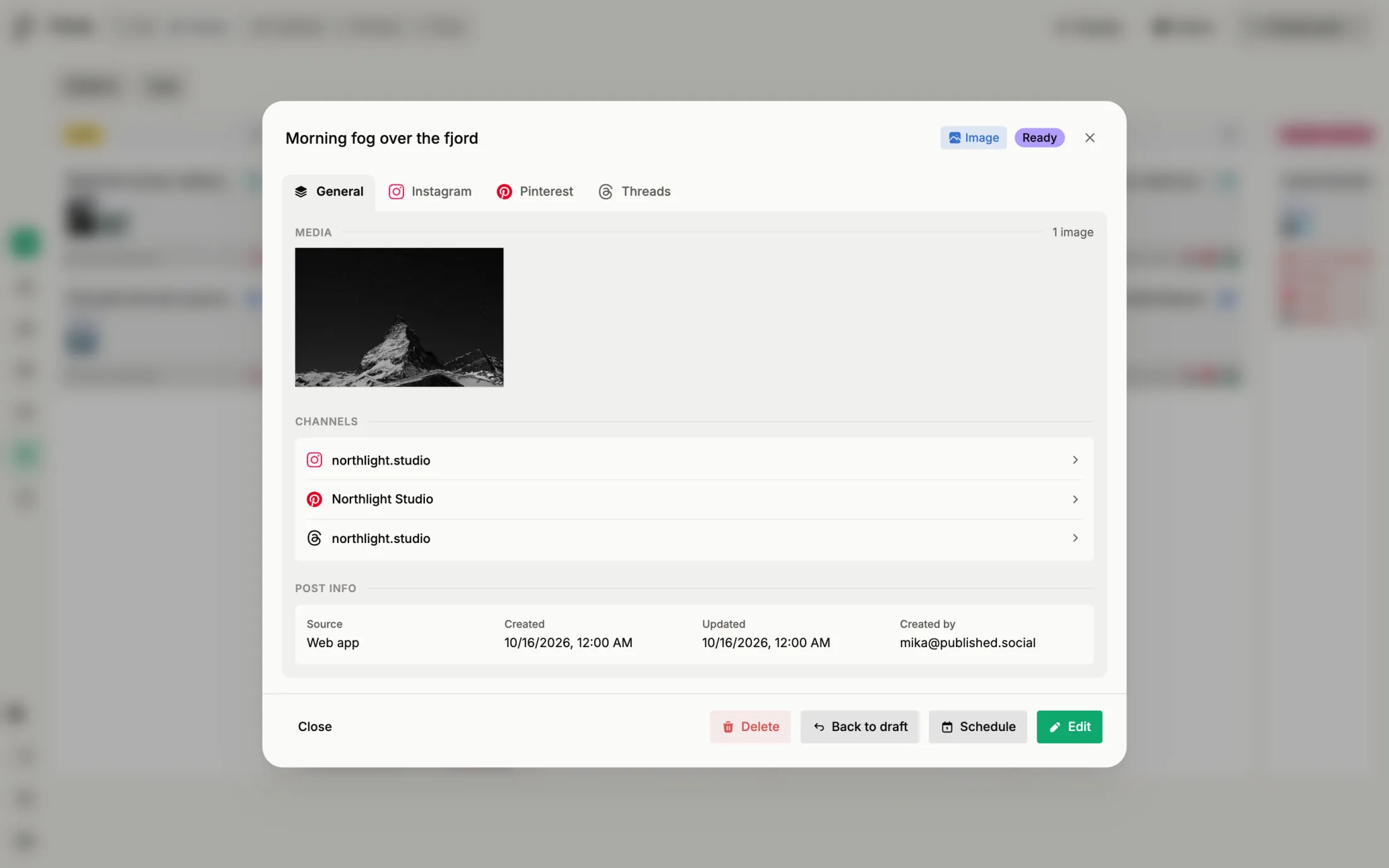
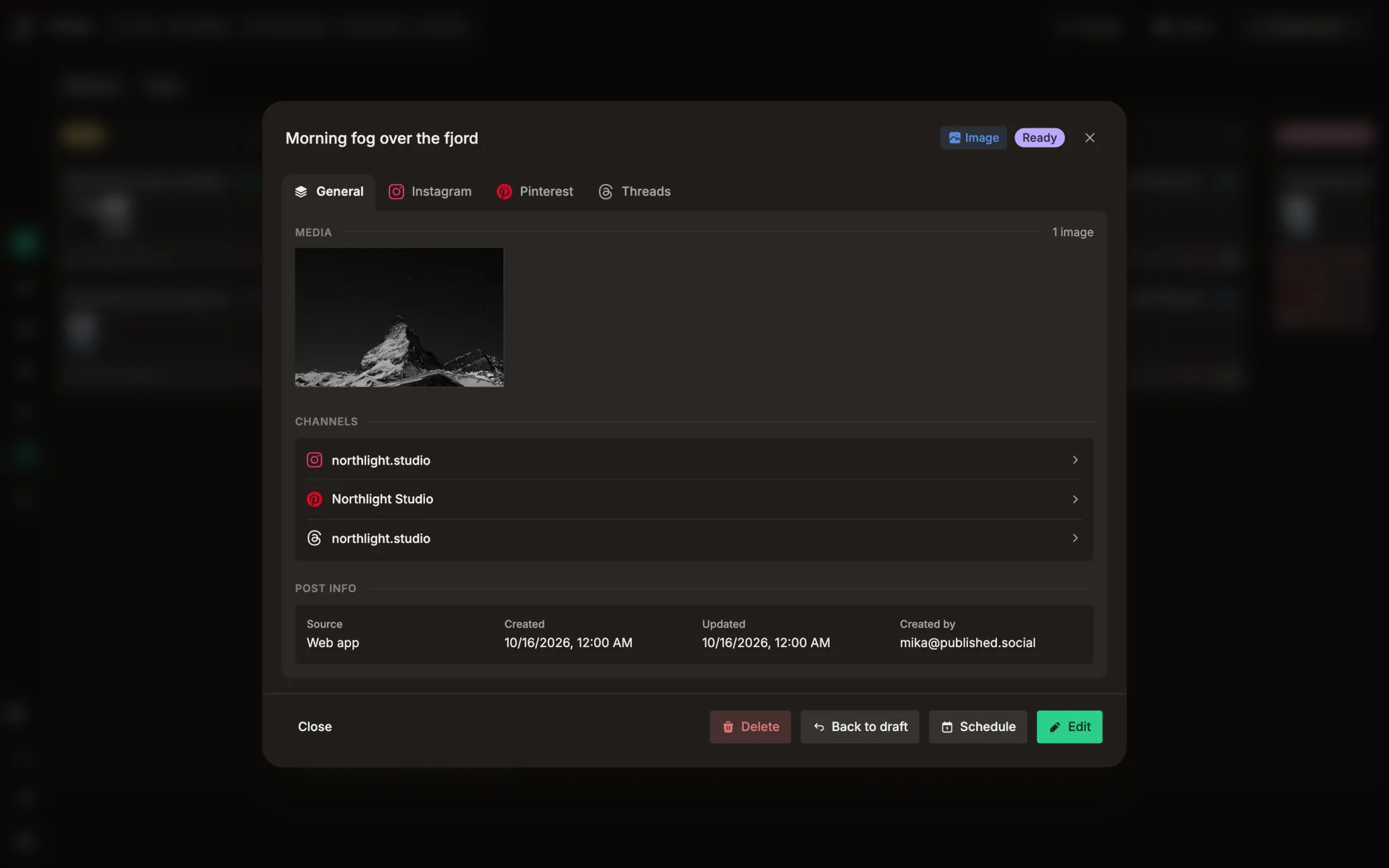
A single post
How to get there: Open a post in “Ready”.
Good to know
Why does the page sometimes open as a list and sometimes as a board?
It remembers the view you used last. Switch it at the top left at any time.
Does selecting posts change anything?
No. Only the action you choose in the selection bar does.